> ## Documentation Index
> Fetch the complete documentation index at: https://docs.polinate.ai/llms.txt
> Use this file to discover all available pages before exploring further.
# Authentication
> Learn how to authenticate with the Polinate API using Business ID and API Key headers
# API Authentication
The Polinate API uses a simple header-based authentication system that requires two key pieces of information from your business settings. This guide will walk you through finding your credentials and implementing authentication in your requests.
All API requests must include both the Business ID and API Key headers for successful authentication.
## Authentication Overview
Our API uses header-based authentication with two required headers:
* `X-Business-ID`: Your unique business identifier
* `X-API-Key`: Your secret API key for secure access
## Finding Your Credentials
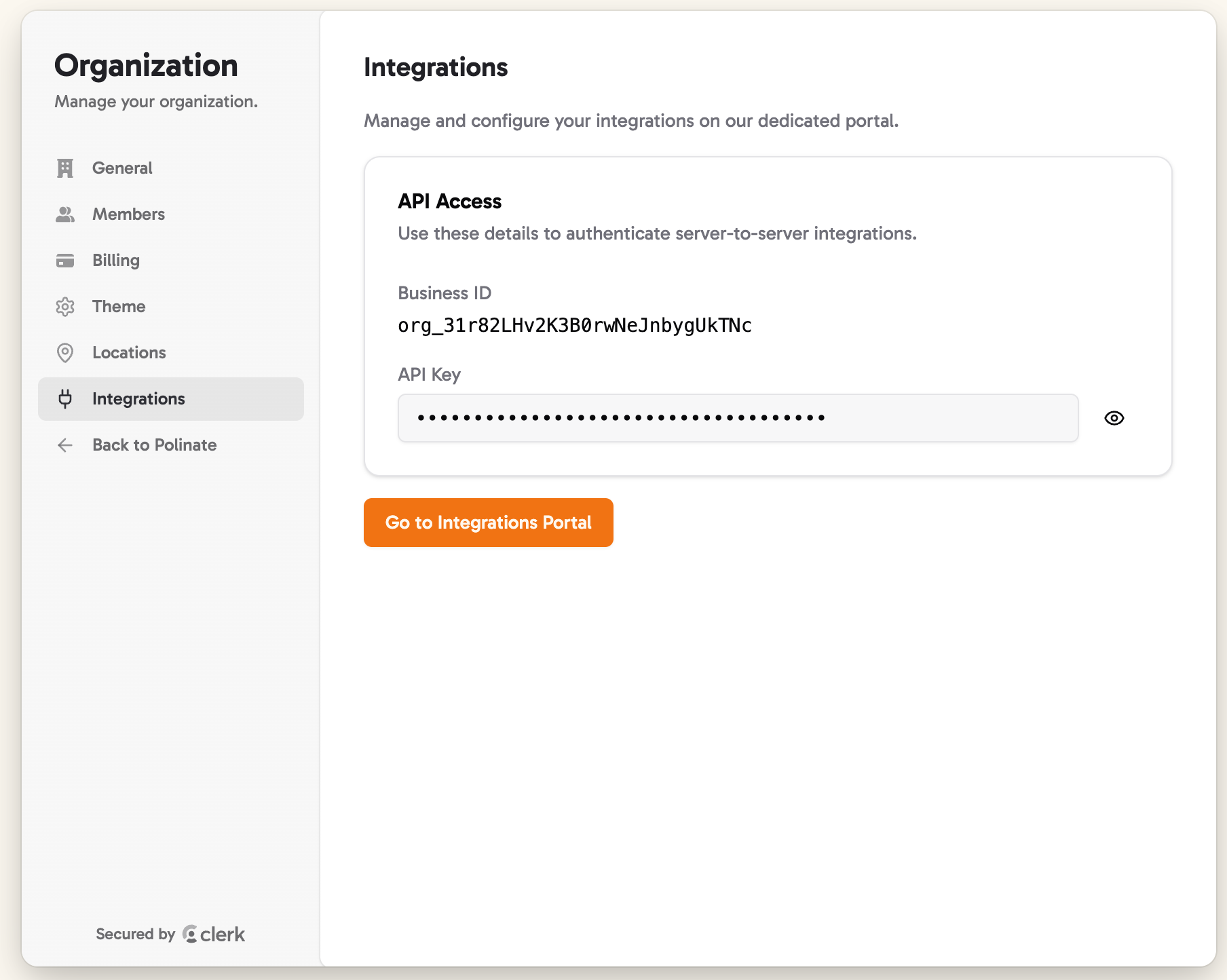
Your authentication credentials are located in your Polinate business settings. Follow these steps to locate them:
Log into your Polinate dashboard at [supplier.polinate.ai](https://supplier.polinate.ai) and navigate to your business settings.
In the business settings, look for the **Integrations** section in the sidebar or main navigation.
You'll find two important values:
* **Business ID**: A unique identifier for your business
* **API Key**: A secret key used for authentication
Keep your API Key secure and never share it publicly. Treat it like a password.
 ## Implementation Examples
Here's how to include the authentication headers in your API requests:
```bash cURL theme={null}
curl -X GET "https://api.polinate.ai/v1/your-endpoint" \
-H "X-Business-ID: your-business-id-here" \
-H "X-API-Key: your-api-key-here" \
-H "Content-Type: application/json"
```
```javascript JavaScript/Node.js theme={null}
const response = await fetch('https://api.polinate.ai/v1/your-endpoint', {
method: 'GET',
headers: {
'X-Business-ID': 'your-business-id-here',
'X-API-Key': 'your-api-key-here',
'Content-Type': 'application/json'
}
});
const data = await response.json();
```
```python Python theme={null}
import requests
headers = {
'X-Business-ID': 'your-business-id-here',
'X-API-Key': 'your-api-key-here',
'Content-Type': 'application/json'
}
response = requests.get(
'https://api.polinate.ai/v1/your-endpoint',
headers=headers
)
data = response.json()
```
```php PHP theme={null}
```
## Authentication Headers Reference
Your unique business identifier found in the Integrations section of your business settings.
**Example**: `bus_1234567890abcdef`
Your secret API key for authentication. This key should be kept secure and never exposed in client-side code.
**Example**: `1234567890abcdef1234567890abcdef`
## Error Response
Authentication errors return the following response when the provided headers are missing, invalid, or do not match your business credentials:
```json theme={null}
{
"errorCode": "UNAUTHORIZED",
"message": "Unauthorized",
"requestId": "{{requestId}}"
}
```
* **errorCode**: Always `UNAUTHORIZED` for authentication failures.
* **message**: A human-readable description of the error.
* **requestId**: An identifier for the request, useful when contacting support.
## Troubleshooting
Make sure you're logged into the correct account at [supplier.polinate.ai](https://supplier.polinate.ai). Navigate to Business Settings → Integrations. If you still can't find them, contact our support team.
Double-check that:
* Both `X-Business-ID` and `X-API-Key` headers are included
* The header names are spelled correctly (case-sensitive)
* You're using the correct values from your business settings
* Your API key hasn't expired or been revoked
Need help? Contact our support team at [support@polinate.ai](mailto:admin@polinate.ai) or join our [slack](https://www.polinate.ai).
## Implementation Examples
Here's how to include the authentication headers in your API requests:
```bash cURL theme={null}
curl -X GET "https://api.polinate.ai/v1/your-endpoint" \
-H "X-Business-ID: your-business-id-here" \
-H "X-API-Key: your-api-key-here" \
-H "Content-Type: application/json"
```
```javascript JavaScript/Node.js theme={null}
const response = await fetch('https://api.polinate.ai/v1/your-endpoint', {
method: 'GET',
headers: {
'X-Business-ID': 'your-business-id-here',
'X-API-Key': 'your-api-key-here',
'Content-Type': 'application/json'
}
});
const data = await response.json();
```
```python Python theme={null}
import requests
headers = {
'X-Business-ID': 'your-business-id-here',
'X-API-Key': 'your-api-key-here',
'Content-Type': 'application/json'
}
response = requests.get(
'https://api.polinate.ai/v1/your-endpoint',
headers=headers
)
data = response.json()
```
```php PHP theme={null}
```
## Authentication Headers Reference
Your unique business identifier found in the Integrations section of your business settings.
**Example**: `bus_1234567890abcdef`
Your secret API key for authentication. This key should be kept secure and never exposed in client-side code.
**Example**: `1234567890abcdef1234567890abcdef`
## Error Response
Authentication errors return the following response when the provided headers are missing, invalid, or do not match your business credentials:
```json theme={null}
{
"errorCode": "UNAUTHORIZED",
"message": "Unauthorized",
"requestId": "{{requestId}}"
}
```
* **errorCode**: Always `UNAUTHORIZED` for authentication failures.
* **message**: A human-readable description of the error.
* **requestId**: An identifier for the request, useful when contacting support.
## Troubleshooting
Make sure you're logged into the correct account at [supplier.polinate.ai](https://supplier.polinate.ai). Navigate to Business Settings → Integrations. If you still can't find them, contact our support team.
Double-check that:
* Both `X-Business-ID` and `X-API-Key` headers are included
* The header names are spelled correctly (case-sensitive)
* You're using the correct values from your business settings
* Your API key hasn't expired or been revoked
Need help? Contact our support team at [support@polinate.ai](mailto:admin@polinate.ai) or join our [slack](https://www.polinate.ai).